The AI Snipping Tool

Select anything. AI it.

Press a shortcut, select anything on your screen, and instantly ask about it, transform it, or create from it. No screenshots. No uploads. No new tabs.

Mac + Windows · Free to start · No credit card

Stop screenshotting things just to upload them to AI.

The old way

  1. Screenshot
  2. Open ChatGPT
  3. Upload image
  4. Explain what you need
  5. Wait

OpenPortal

ShortcutSelectAsk

Nothing to save. Nothing to upload. Nothing to explain.

How it works

1

Press the shortcut

Ctrl+Shift+O. OpenPortal freezes your screen without interrupting what you’re doing.

2

Select anything

Draw a box around whatever you want AI to see.

3

Tell AI what you want

Ask a question, transform what you selected, or generate something new.

That’s it.

See it work. Nothing to install.

Draw a box on the sample, then ask about it or make something from it. Same three moves as the app.

Try it here

3 answers · 3 creations

Paste a screenshot

Press ⌘V or Ctrl V — or drop an image here.

Ctrl+Shift+O in any app. Draw the box. Ask.

Make
Ask

Demo uses a smaller model. Your image is sent to be answered and is never stored. Privacy.

One shortcut. A lot you can do.

Same interaction. Different outcome.

Understand anything

Select

Select an error message.

Prompt

What’s causing this and how do I fix it?

Result

render runs before the data has loaded, so items is still undefined when .map is called. Guard it — items?.map(…) — or return early until the fetch resolves.

Create a Live Now poster

Select

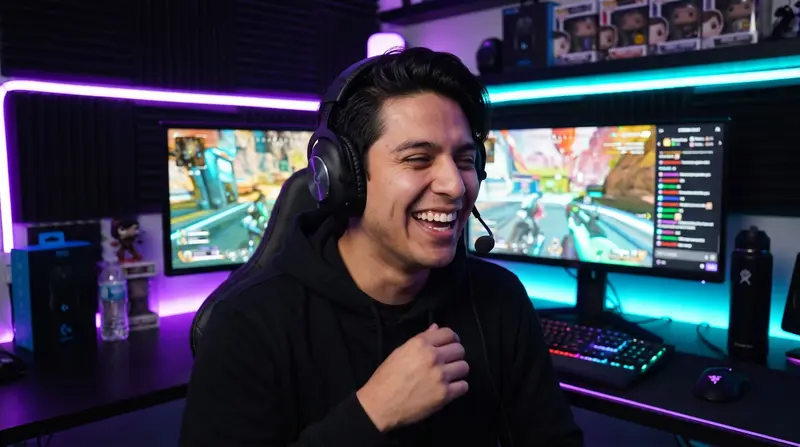
Select a livestream frame.

A webcam frame from a livestream

Prompt

Turn this into a Live Now poster.

Result

A portrait Live Now poster with the streamer, "RANKED GRIND" and the Twitch logo

Make thumbnails

Select

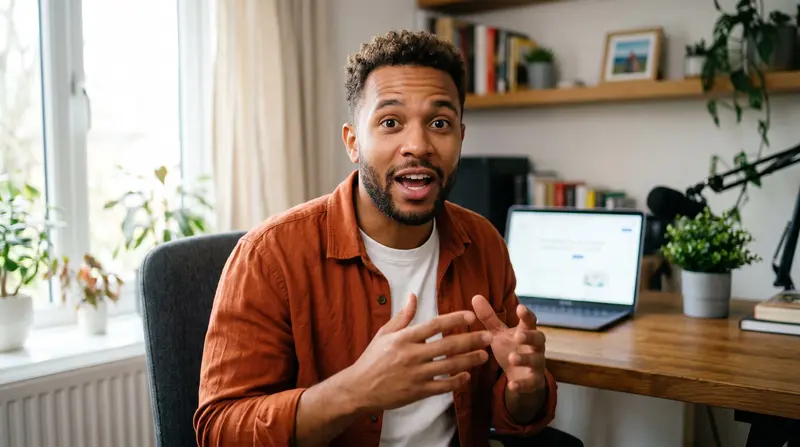
Select a frame from a video.

A paused video frame of a creator at his desk

Prompt

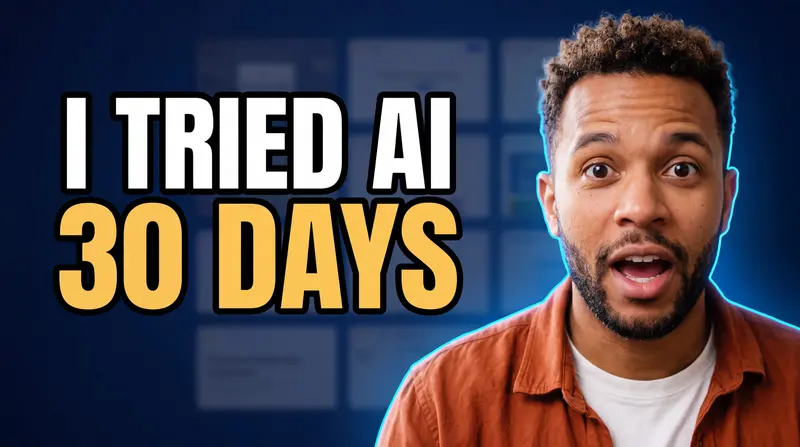
Turn this into a YouTube thumbnail.

Result

The finished thumbnail: "I TRIED AI / 30 DAYS"

Extract information

Select

Select a table or dashboard.

Prompt

Turn this into a structured table.

Result

RegionQ1Q2
North4,1204,385
South3,8903,610
West5,2405,905

Rewrite instantly

Select

Select text anywhere.

Prompt

Make this clearer and more professional.

Result

Thanks for flagging this. I’ve checked the numbers and the March figure was entered twice. I’ll send a corrected sheet by tomorrow.

Explain what you’re seeing

Select

Select a chart, diagram, product, or document.

Prompt

Explain this simply.

Result

Sign-ups grew every month until the fourth bar, which fell by about a third. That is the month the price changed — everything after it is recovering, not falling.

Wait — it can do that too?

The thumbnail, the poster, the ad and the graphic all came from the same three moves. Select something on your screen and ask for what you want.

Video frame → thumbnail

Select a frame. Ask for the thumbnail.

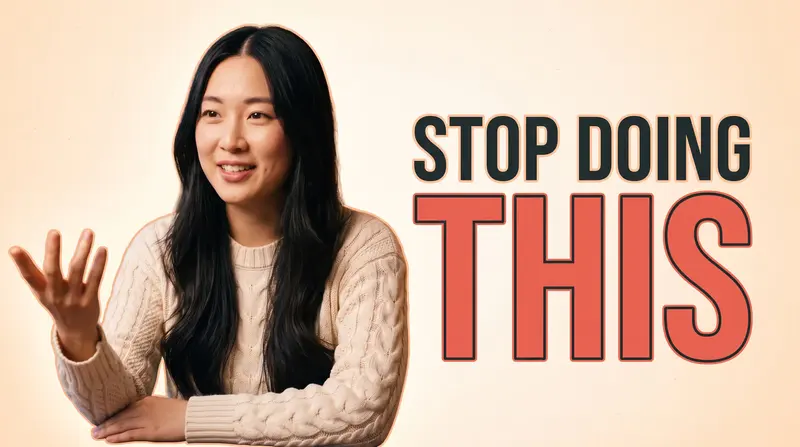
Pause the video where the face is right, select it, ask. The person stays exactly themselves; the type and the background are built around them.

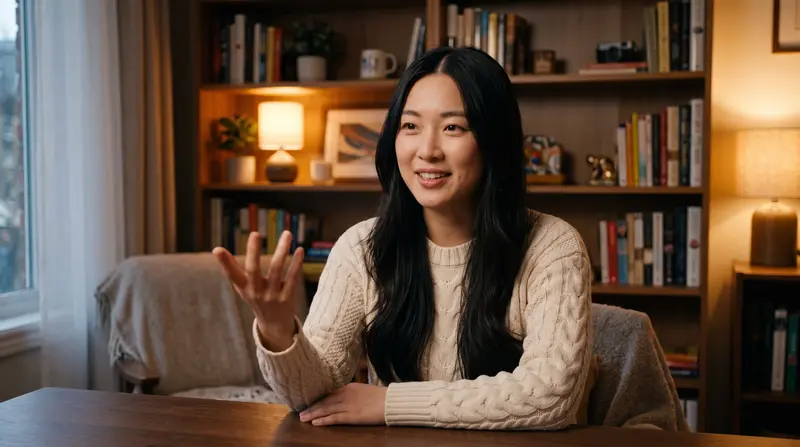
Make this a YouTube thumbnail

A paused video frame of a creator explaining something in her apartment

What you saw

Make this a YouTube thumbnail
The finished thumbnail: the creator cut out on the left, "STOP DOING THIS" on the right

What it made

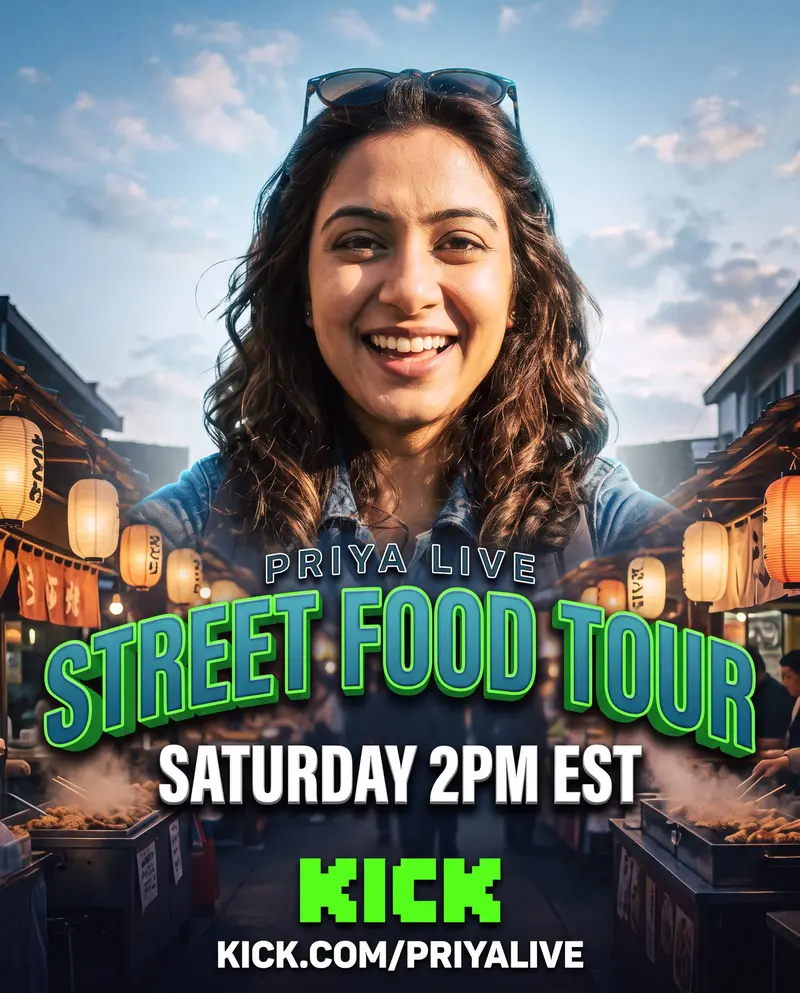
Stream frame → Live Now poster

Select the webcam. Ask for the poster.

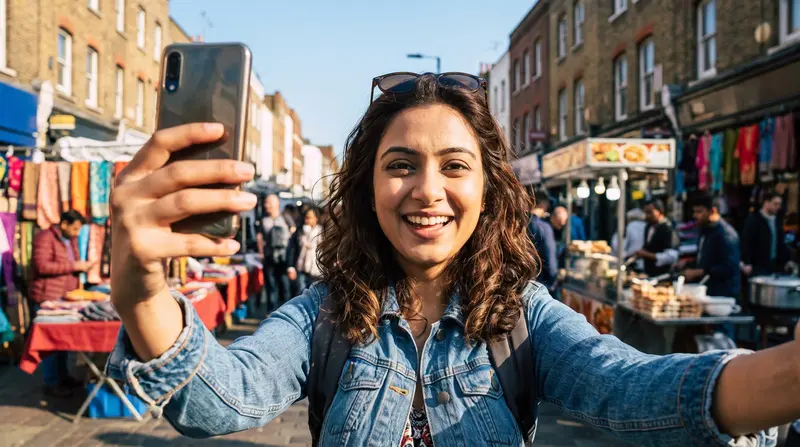
Select the webcam in OBS, a Twitch frame or a VOD, name the stream, and the poster comes back with your title, your date, your platform's real logo and your link.

Make a Live Now poster

A frame from an IRL livestream on a busy street

What you saw

Make a Live Now poster
A portrait "going live" poster with the streamer cut out over a night market and huge 3D title

What it made

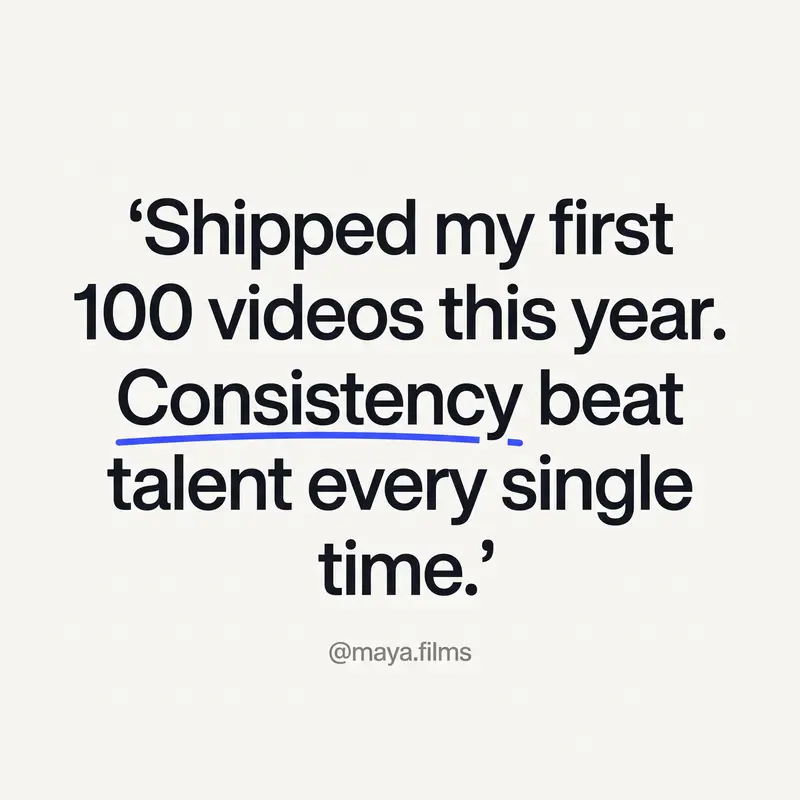
Post → social graphic

Select the post. Ask for a graphic.

A post you wrote, a line from an article, a comment worth keeping — selected, and set as a graphic in the same breath.

Turn this into an Instagram post

Maya Lin@maya.films

Shipped my first 100 videos this year. Consistency beat talent every single time.

4:12 PM · 2.1K likes

What you saw

Turn this into an Instagram post
A square quote graphic set from the post

What it made

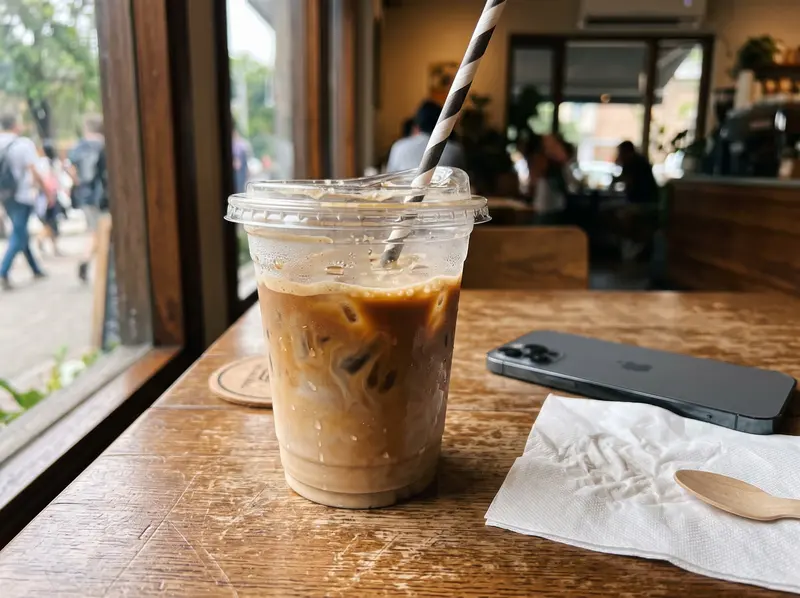
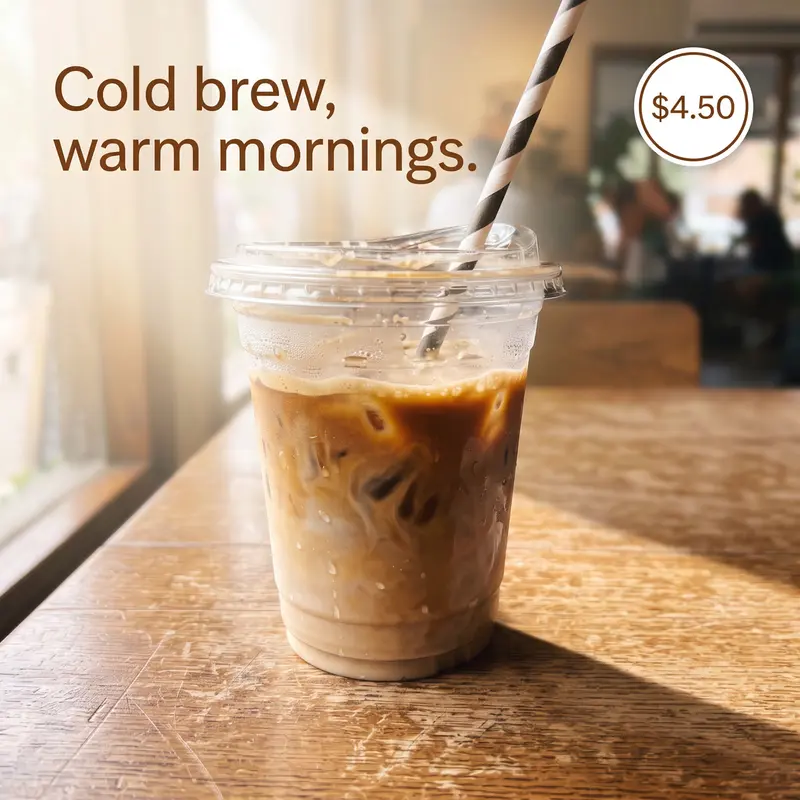
Product photo → ad

Select the product. Ask for an ad.

The product stays the product — same cup, same label — re-lit like a shoot, with room left for the words.

Build an ad for this

A phone photo of an iced latte on a café table

What you saw

Build an ad for this
A square ad: the same latte re-lit on a sunlit café table with a headline and a price badge

What it made

Privacy

You choose exactly what AI sees.

  1. You press the shortcut.
  2. One frame of your screen is captured, once, in memory.
  3. You draw a box around the part that matters.
  4. Only the pixels inside the box are sent. Not the window, not the rest of the screen.
  5. Nothing runs, watches or records between presses.

Your screen isn’t the prompt. Your selection is.

Read our privacy policy

AI on your screen, whenever you need it.

Free

$0

Select and ask, 5 times a day. No card.

Try OpenPortal free

Pro

$19/month

For selecting and asking all day: higher limits, follow-ups, several selections at once, web-powered answers.

See Pro

Premium Best for creators

$39/month

Everything in Pro, plus making: thumbnails, posters, ads and graphics from what you select. 150 creations a month.

Start creating

Prices plus tax where applicable.

Questions

01 What is OpenPortal?

OpenPortal is an AI snipping tool. Press a shortcut, select anything on your screen, and ask AI about it or transform it instantly — the way you already select part of your screen to take a screenshot, with AI on the end of it instead of a PNG.

02 How is this different from taking a screenshot and uploading it to ChatGPT?

OpenPortal removes those steps. Select what you want directly on your screen and ask, without saving a screenshot, switching tabs or uploading a file. The answer — or the image — comes back right where you are.

03 Does OpenPortal work with any app?

Yes. It works from the pixels on your screen, so anything you can see can be selected: any app, any window, any browser tab, a paused video, a game. Nothing needs a plugin. On a Mac you grant Screen Recording once; on Windows it just works.

04 Can OpenPortal generate images?

Yes. Select a video frame and ask for a YouTube thumbnail; select a stream and ask for a Live Now poster; select a product photo and ask for an ad or a social graphic. A finished image comes back where you selected. Making images is part of Premium — Free and Pro answer, explain, rewrite and extract.

05 Is OpenPortal available for Mac and Windows?

Yes: macOS 12 or later, and Windows 10 or later. It is a desktop app, not a mobile one — though the livestream poster generator runs free in any browser, phones included.

06 What can I select?

Anything visible. Part of a video, a chart, an error, a message, a product photo, a paragraph, a whole window. Draw a box, and only what is inside it is sent. With nothing boxed, start typing to ask about the whole screen.

07 Do I have to save screenshots?

No. Nothing is written to disk — not on your machine, not on ours. The selection is held in memory, sent, answered and released. That is the whole point.

08 Does it record my screen?

No. One frame is captured per press and released immediately. Nothing streams, nothing records, and nothing runs between presses.

09 What does it cost?

Free is 5 uses a day and needs no card. Pro, $19 a month, is for using it all day. Premium, $39 a month, adds making: 150 finished images a month. Prices plus tax where applicable.

10 Can I follow up?

Yes. Ask the follow-up in the same box — it remembers the last answer. And you can select more than one thing: box one, press the shortcut again, box another — the slide and the spreadsheet from two applications, read together, up to 10 at a time on paid plans.
Stop screenshotting. Start selecting.

OpenPortal gives you AI directly on top of anything you’re looking at.

Mac + Windows · Free to start · No credit card